Availability Report: Uptime % and Downtime for all your monitors

These days website or app uptime is a crucial aspect to any business online. If your website goes down for any reason your customers and business suffers. MxToolbox Monitoring offers two ways to report on the uptime of your servers:

  • Uptime Reports
  • Availability Reports

Uptime Reporting for Web, DNS, and other critical services give you Summary Uptime and Downtime reporting to protect on each monitor.  Simply select the monitor to see how we protect your business and customer satisfaction.   Uptime monitoring tracks performance over time in order to compare how your server is performing today vs last month or last week.

Screen Shot 2016-04-07 at 1.02.40 PM

Our Availability Report allows you to view the Uptime %, Downtime, and displays the current status for all your monitors. The Availability Report allows you to specify the date range so you can recall historical Uptime/Downtime statistics and issues.  This is particularly valuable when you want to show upper management how well things have been running over the past quarter or year or justify additional expenditures for servers.  In addition, you can access specific monitors directly from the Availability Report to checkout current status and specific issues.

With our new Availability and Uptime Reporting, MxToolbox Monitoring gives you even more insight into how your servers, and business, are running.

HTTP/S Screenshots: Lookups, Monitoring, History, Alerts

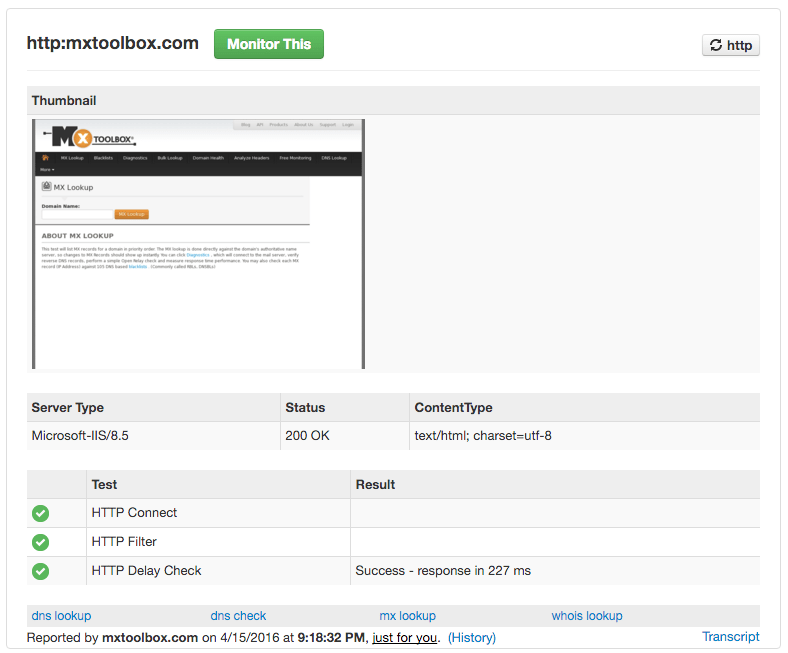
If you’re a fan of our HTTP/S lookup tools, you may have noticed that we added a new feature: Screenshots. Now, when you run an HTTP or HTTPS lookup on a domain you will see a screenshot of what the domain looked like when we ran the test.  If there is an error, you now have more information on what error may have occurred.

http_screenshots


For example: if your server was down when running the test you will see a screenshot of what your customers saw as well as any error codes.

We’ve also added this same capability to our monitoring system!  Now, when we verify your server or website is down, we will include a screenshot  in the alert notification we send you. You get a snapshot of what your customers see when an outage occurs.  Over nights and weekends, on-call teams will be able to directly see what is going on right away and make the best triage decision for the alert.

In addition, monitoring customers can also access a historical screenshots for HTTP/S monitor outages.  Whenever we capture and verify a transition event, UP or DOWN, we store the screenshot in your monitor history.  Now, you will always have a view into site performance and customer experience!

Explicit search parameters now displayed in MxWatch Monitoring

If you have a large number of monitors and wanted to find them quickly, you’ve probably used our search field, and been a little frustrated…  You could search, but it was difficult to see what parameters were in effect, sometimes even hiding monitors you knew were there.  

We decided to improve search for you.  Now, when you enter search parameters, we explicitly display your search criteria and allow you to refine your searches by removing them individually.  Whether is is a name, a type, a tag name, or other search option, it is in the Search Parameter display. 

Screen Shot 2016-04-07 at 12.27.27 PM

For example if you are looking for all HTTP monitors that contain the word example, you will now see both http and example displayed as search parameters on your dashboard. With this new feature you can quickly see what search parameters have been applied to your monitors.

Domain Blacklist vs Domain Health – What’s the difference?

MxToolbox offers two products with Domain in the name and that sometimes causes a bit of confusion with our newer customers.  I’d like to take a few moments and compare and contrast the two products to eliminate confusion and you using the right product.

Domain Blacklists

A Domain Blacklist lookup takes a domain name as the argument and does the following:

  1. Looks up the A record for the domain to get the primary domain IP address
  2. Searches over 100 IP-based blacklists for this IP address and reports the results
  3. Searches a set of domain blacklists for the domain name and reports the results

This search will tell you what blacklists your web server is on and what domain blacklists your domain may have been added to, essentially giving you an idea of your domain’s public reputation.

IP Blacklists vs Domain Blacklist

IP blacklists contain the IP addresses of known spammers, malware infectors, virus and botnet distributors and other bad actors.  When an IP is on a blacklist it is has been caught in some bad act.  Since an IP address identifies a particular server somewhere, you know that the server is performing some bad act.

Domain blacklists contain a list of domain names that have been included in known spam attempts.  This does not mean that the domain is the source of the spam, or that the server is a source of spam.  It only means that the domain name or domain URL was included in spam or malware laden emails.

So, if you are sending email, you want to check the IP address of your mail server.  If you are running a web server, you want to check the IP address of the server.  If you are concerned about your domain’s reputation, you should check your domain against a domain blacklist.

Domain Health Lookup

A Domain Health Lookup takes your domain name and provides you with a battery of tests to judge the health of all aspects of your domain:

  • Blacklist status of Mail Server, Web Server and Domain
  • Status of your Mail Server and compliance with RFCs and best practice configuration (DMARC, DKIM, etc).
  • Status of your Web Server, including HTTPS Secure Certificate and setup compliance with RFCs
  • Status of your DNS and RFC compliance

So, a Domain Health test provides everything that a Domain Blacklist lookup provides plus a comprehensive look at the health of your domain.  

Use Cases

For simply finding your Domain’s online reputation, use a Domain Blacklist lookup.  To get an early warning on changes to your domain’s reputation, use a Domain Blacklist Monitor.  

To get comprehensive information on your domain, use Domain Health.  To get comprehensive monitoring on your entire domain: web, email, dns and reputation, use a Domain Health Monitor.


What blacklists do I check and how should I?

Amongst our newer users, we often get some confusion between IP and Domain blacklist lookups and what the results mean. There is a distinct difference in the search and results and different benefits for performing the different lookups.  I’m hoping this will clear it up for many users and enable everyone to understand the unique benefits to each.

IP Blacklist Lookups

When you perform a blacklist lookup on an IP address, our system searches a list of 100 IP-based blacklists for the IP you gave us and returns both positive and negative results.  

An IP may be on this blacklist for any number of malicious activities:

  • Sending spam
  • Malware attacks
  • Operating a tor node
  • Hosting a botnet or virus
  • Many others…

Since an IP address represents a server on the Internet, any IP address could be blacklisted.  While any IP address may be listed, it is typically a webserver or email server that is the primary culprit.  We therefore recommend checking and monitoring the IP addresses of your web and email servers on a regular basis.

Domain Blacklist Lookups

When you perform a Domain blacklist lookup, you input a domain name.  MxToolbox algorithms do a DNS lookup of the Domain to produce the primary DNS record for that domain (an A record search).  We then run the IP address of the A record against all IP blacklists and simultaneously we run the domain name through a second set of domain blacklists.  Both could return results of blacklisting.

IP Blacklists vs Domain Blacklist

IP blacklists contain the IP addresses of known spammers, malware infectors, virus and botnet distributors and other bad actors.  When an IP is on a blacklist it is has been caught in some bad act.  Since an IP address identifies a particular server somewhere, you know that the server is performing some bad act.

Domain blacklists contain a list of domain names that have been included in known spam attempts.  This does not mean that the domain is the source of the spam, or that the server is a source of spam.  It only means that the domain name or domain URL was included in spam or malware laden emails. 

So, if you are sending email, you want to check the IP address of your mail server.  If you are running a web server, you want to check the IP address of the server.  If you are concerned about your domain’s reputation, you should check your domain against a domain blacklist.

Blacklist Monitors

MxToolbox Experts recommend that everyone with their own email servers monitor the IP addresses of those mail servers against IP blacklists.  This will give you warning that someone or something is performing a bad act through your email.  Further, it is highly recommended that you monitor you setup a domain blacklist monitor for your website.  Since domain blacklist monitors use both the IP of the web server and the domain in blacklist searches, you get extra protection of your reputation.  

Free Monitoring

MxToolbox offers one free IP blacklist monitor to our registered users.  This enables you to monitor your email server or webserver for blacklisting in the most common IP blacklists.  Our domain blacklist monitors are more comprehensive for web reputation and are therefore a paid feature.  While most of our customers find a free account sufficient for a small business, some want the additional reputation protection of a domain blacklist monitor or our Domain Health Monitoring.

GoDaddy DNS – Or other slow DNS responders


Within the last few weeks, we’ve seen a spike in customers reporting that DNS monitors are “falsely” showing GoDaddy.com hosted DNS as DOWN.  Subsequent discussions with customers and their discussions with GoDaddy.com agents reveal that GoDaddy.com DNS services are technically UP but occassionally resolving in greater than 3 seconds.  This is a problem we find with other DNS providers from time to time, but seems to be a larger issue recently.

Our Philosophy

MxToolbox philosophy is that DNS resolution should be less that 3 seconds at all times.  We think of it this way: If your customers are looking for your site, they shouldn’t be waiting for 3 seconds plus the page load time of your site before they get to see your brand.  Instead, DNS should always resolve fast enough so that your customers find your site quickly.  Would you really want your customers’ first impressions to be that your systems are slow?  Neither would we.

So, what’s the solution?

Our experts have been thinking and discussing the issue and we came up with a couple of options:

  • Keep Monitoring – When your DNS is slower than 3 seconds, we will alert you. You should know that your performance is slow for your customers.  
  • Keep Talking to your DNS hosting provider – When they’re slow, let them know.  Only your provider can improve their performance.
  • Consider other options – If you regularly find your DNS resolving slowly, perhaps it’s time to upgrade to a better DNS hosting solution.
  • Set a filter – MxToolbox monitoring includes customizable filtering options in the Notifications Policy Page.  You could setup a Policy to require two or more warnings in a row before alerting you, to delay the alert or to suppress the alert entirely.

Regardless of the direction you take with your DNS, know that MxToolbox is here to support you with expertise in networking, email, web and everything else you need to keep your business up and running on the internet.

About MxToolbox

MxToolbox.com offers free tools and paid monitoring packages to small, medium and large enterprises worldwide.  Our monitoring packages enable business to know immediately if a common networking, blacklisting or system performance issue occurs.  No other company provides such a comprehensive suite of solutions that can scale from small business to a service provider with hundreds of thousands of IP addresses.

Release Notes: January

Here at MxToolbox, we realized that simply releasing new features was insufficient.  We thought maybe you, our customers, might actually like us to tell you what we’ve accomplished. We’ll be doing this more often to help you find new things and new features.

The last month was a good start to the year.  Here a few things that we thought might interest you:

Free Tools

  • DNS Zone Protect Product page now has an AXFR lookup.  Return all the DNS entries for your domain in a single query is AXFR is enabled.  Get more information on DNS Zone Protect.
  • Bulk Lookup for Free Users.  A new link to the Bulk Lookup Tool is available via the toolbar on the homepage.
  • Time Zones are now properly respected for monitors and lookups.  There were some inconsistencies.

Paid Monitoring

  • Get better availability information on your monitors and adjustable date ranges.
  • Fixed Support link for Service Provider customers.
  • Service Provider customers can now have stacked notifications or individual transition notifications.
  • Corrected the way User defined filters worked.
  • Fixed a bug where some customers were not able to complete delisting requests.

As always, let us know if you have any Feedback!

New MxToolBox Monitoring Feature: Pausing Monitors

Sometimes, there comes a point when a server needs to be taken down for temporary maintenance. Whether you are monitoring that server for performance or availability, you more than likely don’t want to get inundated with down alerts or, worse,  go through the process of removing the monitor in order to stop the alerts – only to re-add it again later.

With that in mind, MxToolBox recently released a new feature for pausing your monitor. Whenever you need to take server offline, you can simply pause/disable your MxToolBox monitor until you are ready to bring the server back online.

To access this feature:

  • Select the monitor you wish to pause
  • Select the “Edit” tab
  • Choose “Disable Monitor”.

When you are ready to unpause your monitor:

  • Select the “Disabled” button in the status bar of your monitoring dashboard
  • Select your monitor
  • Click “Edit”
  • Select “Enable Monitor”

Bam! your monitor is now active again and ready to start tracking.

MxToolbox Use Cases: Firewall Setup

Testing Firewalls

Testing firewall setup can be a tricky business.  There are thousands of ports to scan and many types of options that make configurations complicated.  While MxToolbox can’t know every firewall and test every variation, we can give you tips on how to probe your firewall externally using our tools to see if everything is setup properly.

Pre-Test

Before you begin testing your firewall setup, you’ll want to make a few lists:

  1. Make a list of IP addresses and server names.  You should have two lists:  one for public facing servers that you want to be able to access and another for private servers that should not be externally facing.
  2. Make a list of ports that should be accessible on the firewall, based upon the types of servers you have that are public facing.
  3. You may also want to make a list of ports you absolutely want blocked for security reasons.  We have a few in our Portscan Tool.

Verifying Setup

During setup verification, you will run a series of tests against both your public IP addresses and private servers to ensure your firewall is appropriately blocking traffic and permitting only what you want.

  1. Run a port scan on your firewall.  This will tell you if most common ports are open
  2. Ping both lists of servers: IP addresses you want to be public and servers you don’t want to be public.
  3. Run a Traceroute to all public facing servers so you can be sure that traffic is running through your firewall.
  4. Run SMTP, HTTP, or TCP tests on all public facing servers for each port/service combination that the server will be running.  Alternatively, you could simply run a port scan for each server.

On-going Server Maintenance

On-going, you may want to ensure your firewall is open to the ports/services you have specified.  The best way to test this is through regular monitoring.

  1. Setup SMTP monitors for all mail servers behind the firewall
  2. Setup HTTP monitors for all web servers behind the firewall
  3. Setup TCP monitors for all other services on those servers.

Monitors are the best way to know immediately when a service or server goes down.  MxToolbox monitors are constantly probing your systems to check availability, giving you peace of mind knowing that you will know if something goes wrong.

MxToolbox Use Cases: Webserver Setup

Setting up a Web Server

Setting up a webserver for a new or existing domain can be a fairly trivial task with the right tools.  An administrator needs to balance configuring web server software, DNS setup, load-balancing, redundancy, and firewalls.  Here are few tools that might simplify your setup process:

Pre-Check

  1. Run a blacklist check on the IP addresses that you plan to use for your web server.  A blacklisted IP address should not be used for mail servers or web servers as this is an indication of potential fraudulent or spammer activity.

Verifying Setup

We’ll pick-up after you have assigned the IP addresses, and installed the OS and web server software.  From there you will want to verify that your server is up and running and accepting HTTP or HTTPS connects:

  1. Run an HTTP or HTTPS test on each IP that will accept email.  This will perform several tests against your server and give you results on your web configuration. HTTPS tests add a few additional areas related to configuration of the secure socket layer, including certificate checks.

Verifying DNS Setup

  1. Check that you have properly configured A records for the server(s).

On-going Server Maintenance

  1. Setup a web monitor on each IP that will serve as a web server.  This will perform several tests against your server and give you granular results on the status of your HTTP or HTTPS configuration.

Today, almost every online service runs off an HTTP or HTTPS backend.  Knowing that your services are up and running is incredibly important.  With MxToolbox Monitoring solutions, you can be sure that your services are up and performing while you concentrate on making them even better.