Author Archives: MxToolbox Blog

Network Solutions DNS problems

We have seen a large number of alert emails go out from our Monitoring System and they appear to be caused by problems with Network Solutions DNS  servers being intermittently unavailable. No word yet as to when it might be resolved.

Network Solutions Facebook – https://www.facebook.com/networksolutions
Network Solutions Twitter – https://twitter.com/netsolcares

You can check your DNS with our tool – http://mxtoolbox.com/DNSLookup.aspx. Network solutions servers names end with .worldnic.com.

REST API Access Now Available

We recently released an often requested feature – API access to MxToolbox.  With the API, you can easily integrate MxToolBox directly in your own tools and website.

What is it?

The API is a RESTful Web Service.  Basically, you send a url to the site, and it will return the results in JSON format.  RESTFul services allow for simple testing.  For example, if you want to do a dns lookup on example.com, you go to

http://api.mxtoolbox.com/api/v1/lookup/dns/example.com/

with the following results:

    {
    "UID": "bca9f444-f28d-4d49-9368-2386d70e3034",
    "Command": "dns",
    "CommandArgument": "example.com",
    "TimeRecorded": "2013-10-11T10:40:21.7445287-05:00",
    "ReportingNameServer": "a.iana-servers.net",
    "TimeToComplete": "5101",
    "HasSubscriptions": false,
...
    ],
    "Passed": [
        {
            "ID": 305,
            "Name": "DNS Bad Glue Detected",
            "Info": "No Bad Glue Detected"
        },
    ]
...
}

You may notice that this information is almost exactly what you would get if you ran this in SuperTool:

http://mxtoolbox.com/supertool.aspx?action=dns:example.com

With the API, there is no longer a need to “scrape” the SuperTool results.

In all, the REST API has three functions/urls available

  • Lookup – as shown in the prior example, gives access to the SuperTool engine.
  • Monitor – access to the status of your current subscriptions, similar to the Monitors Tab in the Dashboard.
  • Usage – view the number of available API calls available to your subscription

The above links show example uses of each function.  In order to regulate usage, you are required to Request an API Key.  Each of the example links above include a “API Access Key” section with a button to request a key.  The api key is associated with your account.  Like all good things, we require a paid subscription to access the full power of the API.  The limits are defined in the  API Documentation.

To help with testing, we also allow all “example.com” lookups to be completed without an api key. This is why the above example works.  If, for example, you try navigating to http://api.mxtoolbox.com/api/v1/lookup/dns/mxtoolbox.com/ , you will get an “Invalid ApiKey” error because the argument is “mxtoolbox.com,” not “example.com.”  Please see the api documentation and examples for the proper way to use your ApiKey.

Use Cases

Customers have asked for this functionality for multiple reasons.  Usually it is to run a blacklist on demand from their own toolset.  The second most popular request is to get a “real time” version of their monitors.  We are excited to see what other uses customers have for the API.

The API is currently in BETA, so expect some slight changes as we determine the needs of our customer.  As always, we appreciate any feedback.

August’s New Feature – SSL Certificate Analysis

http_url

We are trying to add a new monitor or feature every month at mxtoolbox.com and for August we have added SSL certificate analysis onto our HTTPS tool and monitor.

https_details

The new version of the HTTPS tool will still go and fetch a page at whatever https:// url you configure. This will make sure that the web server is online and serving pages. Just as with our HTTP monitor, you can include an optional word (or regular expression) that must be present on the page in order to pass, so you can configure the test to confirm an additional bit of status as well.

In addition, we have added SSL Certificate Analysis. We will inspect each link of the security chain for information and errors. In addition to errors, we will also issue a warning if any certificate in the chain is due to expire in less than one month. So you can use the lookup tool to quickly check your cert, and by adding a monitor, you will receive an alert when you are due to begin the process of obtaining a new certificate with plenty of time to obtain and install the new cert.

You will receive an alert if

  • DNS Check – If we can’t resolve your domain
  • Connectivity Check – If we can’t connect on port 443
  • Keyword Check- If your keyword is missing
  • Performance Check – If your page doesn’t return within 15 seconds
  • Certificate Validity Check – If your certificate is invalid
  • Expiration Check – If your certificate is expired
  • Expiration Reminder – If your certificate expires within a month

New Feature – Notification Delay

We have just introduced a new monitoring feature called “Notification Delay,” which allows you to adjust how long a Monitor must be down before generating a problem alert.

Most of our monitors are high priority–we are notified immediately if there is a problem. However, we have a few that are less important like batch jobs and non-critical systems. Notification is only necessary if they have been down for a longer period of time (maybe 30 minutes or an hour). Another example is automatic maintenance jobs over the weekend that briefly shut down some services and notification is only necessary if something has been down longer than expected.

You can set the delay on the monitor details screen which you can get to from the Monitor Tree, your Dashboard, or your main Monitors list. For your convenience we have put a link directly to the details in all alert emails.
Nofitication-Delay Screenshot 1

The default value is to Send Immediately. You can choose values of 15 minutes, 30 minutes, 1, 2 or 4 hours of sensitivity.

Nofitication-Delay Screenshot 2

Please note, notification delay is only applicable to MxToolBox “transactional” monitors such as Mailflow, SMTP, TCP, HTTP, and HTTPS. There is not a notification delay setting on Blacklist monitors. To adjust blacklist notification frequencies, contact support to activate the Summary Alert Message (SAM) feature that generates alert reports containing all of your monitors that are in transition in one nicely formatted email message.

Notification Delay is available now to all of our paid users. If you’ve thought about upgrading your free account, now is the time!

New User Interface Design for MxToolbox.com

/* Override and fix bootstrap hover */
.btn:hover{
background-position: 0 -44px;
-webkit-transition: none;
-moz-transition: none;
-o-transition: none;
transition: none}

vt_logo

Try It Now!

4/1/2013

MxToolBox constantly works to make our free public DNS, email and diagnostic tools better. We are announcing a major leap forward in user interface technology. We invite everyone to preview the new MxToolBox.

vt_example

vt_term
VT100 technology is now ubiquitous, and represents a major improvement over the outdated VT52 protocol which, let’s be honest, had some limitations. The additional character sets and escape sequences allow the kind of cutting-edge branding and logos marketing teams demand today. User interface developers are now able to deliver the highest possible user experience.

While other websites are stuck with outdated HTML5 technology, MxToolbox is now able to serve users with almost any hardware, including most terminal introduced after August of 1978. VT100 apps are also available for all major smart phone platforms. Well, at least IOS and Android…we’re not sure about Blackberry.

The reduced bandwidth requirements will especially benefit our users in the US, of which an estimated 10 million still have dial-up internet access, with 3 million on AOL alone. With much higher connection speeds, we don’t think the rest of the world will see much performance benefit.

The existing version will continue to be available while the new interface is in beta.

Our future technologies division encourages your feedback and if we can get 1,000 “likes” on Facebook, our management has promised to purchase us a 14.4 Kbps modem!

Try It Now!

Controlling Alert Notifications

Notifications MenuNotifications Settings

We recently had someone who uses MxToolbox monitoring contact us with a question of how he could avoid getting blacklist alerts on his phone in the middle of the night while still being able to get mobile alerts for critical things like his MailFlow monitor.

There are a couple of ways to manage your notifications and I wanted to share them here and show how you could use them to take control of the communication we send you.

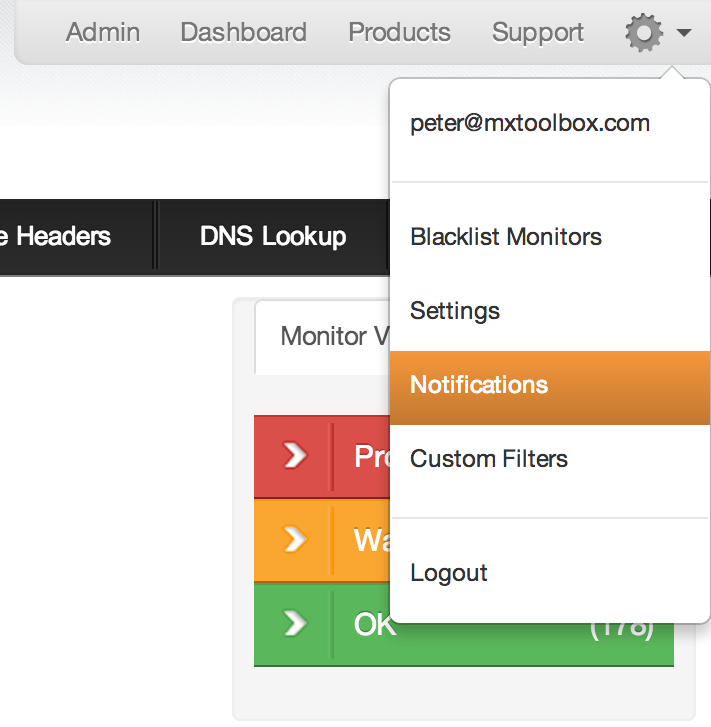
You can access the Notifications settings under the main settings menu in the upper right.

Main Notification Grid

Notifications Grid

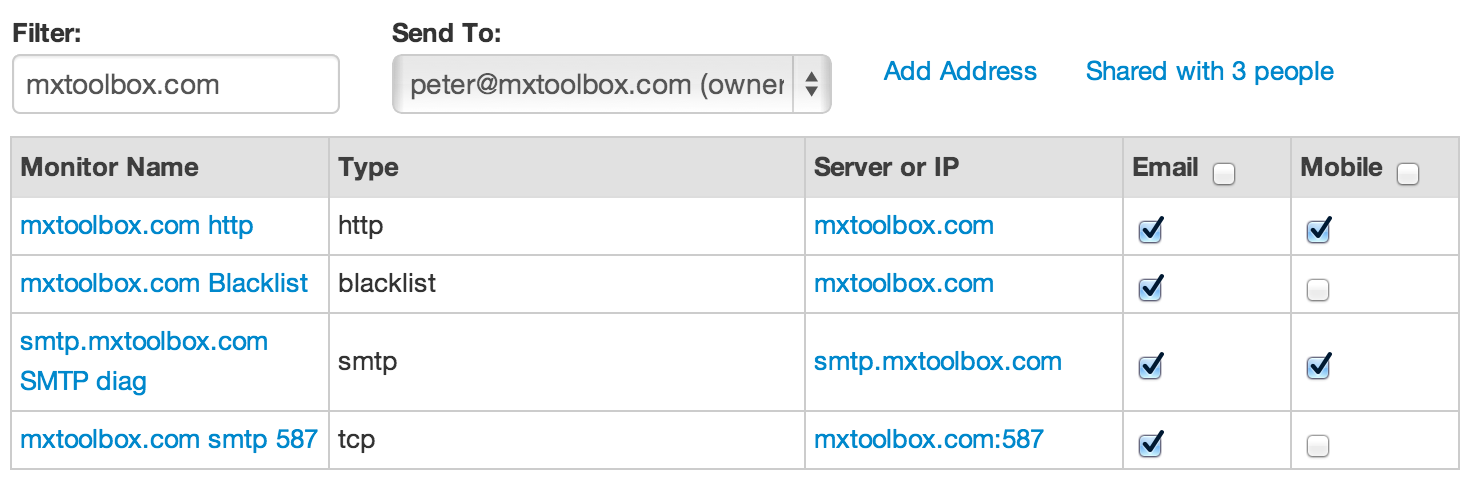
Here you will be presented with all of your monitors and which type of notifications they are configured to send out. You can filter this list to find only monitors that match your criteria and you can use the top checkboxes to turn all of the monitors on or off with a single click. This way you can decide what comes to your inbox and what comes to your phone. If you like, you can configure a monitor to never send notifications at all. More on that later.

Default Notification Options

Default Notification Settings for New Monitors

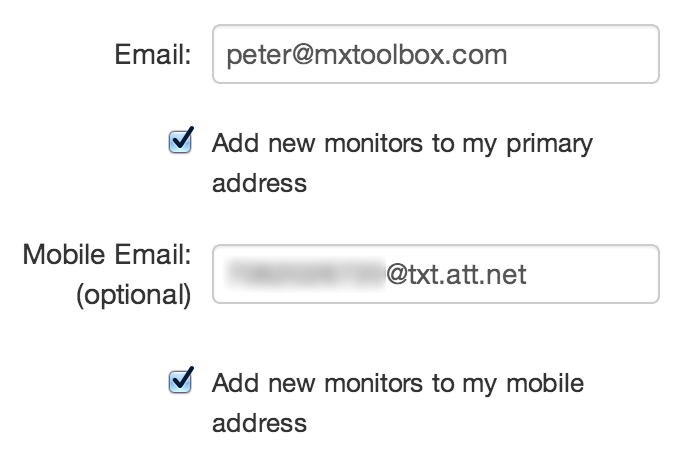
On your main settings page you can also configure your account to set default options for any new monitors that are created. This is especially helpful if you frequently add monitors and do not wish to get mobile alerts by default.


Blacklist Summary Settings

Blacklist Summary Settings

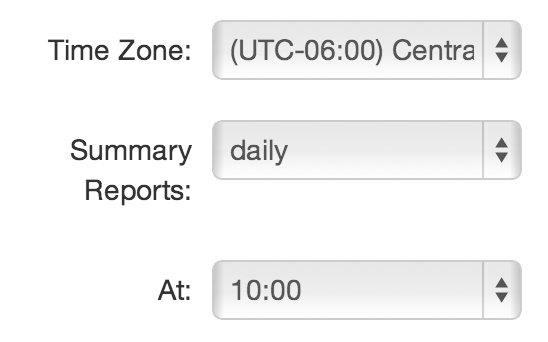
I also mentioned before that you might choose to not receive any notifications for some monitors. If you have many IP Addresses that you are keeping tabs on instead of being notified as each IP goes on and off a list, you can select to receive a helpful summary email which shows the status of all of your blacklist monitors. You can choose these to be generated anywhere from hourly to monthly and choose what time they are mailed to you. These settings are also located on the main settings page.


Domain based blacklist monitoring added

Domain Blacklist

Thousand of companies from around the world use MxToolBox’s blacklist lookup and monitoring tools to keep their online reputation safe.  This service checks your IP Address against multiple blacklists to tell you if your server is blacklisted.  Today we are adding domain-based blacklist lookups to the tools.

These domain blacklists (RHBLs, or Right-handed black lists) are an increasingly popular way to attempt to cut down on spam and fraud.  They work like this.  Instead of a server’s IP being listed, an entire domain name could be listed.  For example, if your domain name is example.com, companies may look at the From: field and the body of an email message to see if they contain links to that domain name.

Keep in mind that MxToolBox does not run or endorse any of these lists, and users of our paid monitoring service can opt to “Ignore” these lists from their tool results and monitoring alerts.

All you need to do is run a blacklist check like normal on the website, but instead of entering an IP address, you just enter a domain name (example.com).  MxToolBox will detect that you have entered a domain name and run BOTH the “normal” IP based lists and the domain-based ones as well.

We have added a few new lists this week and expect to add more over the coming weeks.  Anyone can run a domain-based lookup on our web site for free, and users of our paid service can subscribe to alerts on these.

Your next blacklist summary email should reflect these new blacklists for any domain based monitors you have.

Main image courtesy of ivanpw

Office 365 Free Trial From MxToolBox

MxToolbox_Office_365MxToolBox is now offering 90-day free trials for Micosoft Office 365.  If you have thought about moving to the Cloud, now is the perfect time to try something powerful and new in the new year!

If you find server upgrades too costly, yet spend too much time managing your servers, then we have good news for you. Microsoft Office 365, a cloud-based productivity service hosted by Microsoft, provides anywhere access to your familiar Office applications, email, calendar, video conferencing, and most up-to-date documents across your devices—all for one predictable monthly fee. With Office 365 you can take advantage of the latest Office client and enterprise-ready tools on virtually any device—from laptops to tablets to smartphones—without having to upgrade your servers. With a financially-backed 99.9% uptime guarantee, best-in-class virus and malware protection, automatic backup and server patches, and geo-redundant data centers,

Office 365 delivers business continuity that’s easy to set up and manage and doesn’t require upfront server costs. With Office 365 you get the best value to fit your changing needs as you grow your business.

New Subnet Management & Calculator Tool

MxToolbox has just launched a new Subnet Calculator tool.  It does basic subnet calculations like many online tools, but with an MxToolbox twist.  It also displays a list of each IP in the subnet and automatically does the reverse DNS lookup for you.  Real data, at your fingertips, free for all of our users.

Subnet Tool
We’ve designed this tool with service providers or larger customers in mind who manage blocks of IP addresses. For our blacklist monitoring customers, we also overlay your blacklist status and reputation data right in top of your subnets. You can also easily save “Name” information directly into the results to make it easier to keep track of things, if your reverse DNS names are not descriptive enough.

All logged in users (free, basic, or pro) will have a history of their subnets available in a drop down menu for easy access.
We are hard at work on more exciting features, and will keep you posted here.

MxToolbox adds Custom Filtering

We have been hard at work behind the scenes at MxToolbox getting ready to launch several new features, the first which is called Custom Filters. The MxToolbox tools are now recording each part of a lookup as separate piece of information. By doing this can now allow our users to ignore any piece of a lookup that might not be important to their organization.

The Custom Filters preference pane

The most common use of the custom filters we predict will be for users to ignore blacklist alerts for lists that they are not interested in being notified for, however the feature is available for all of our monitoring lookup types and can be tailored to fit specific monitoring needs.

Custom Filters are only available for customers with at least a Basic account which starts at $20 per month. Basic packages also come with additional monitors, more frequent monitoring, our bulk add tool, and a tag based dashboard. Visit our upgrade page to see the full details to our Basic and Professional packages.